Keyboard shortcuts
Brisal drives almost everything from the keyboard through a tmux-style keymap: a leader key opens a menu of multi-key sequences, and a few modes rebind the keyboard entirely while they’re active. Every binding on this page is a default — all of them are remappable per workspace from Settings → Hotkeys.
How the keymap reads
- A chord is one key plus any modifiers, joined with
+:ctrl+p,mod+m,ctrl+shift+enter. - A sequence is one or more chords separated by spaces:
ctrl+b w nmeans “pressCtrl+B, thenw, thenn”. Sequences are how the leader works. - Bindings are case-insensitive and modifier order doesn’t matter —
Ctrl+S,S+Ctrl, andctrl+sare the same chord.
The leader key
The leader is ctrl+b. Pressing it starts a sequence and opens the
which-key menu — a hint surface listing the keys you can press next and what
each does. Keep pressing keys to walk the menu; it fires as soon as you reach a
bound sequence. If you pause too long (5 seconds by default) or press a cancel
key, the pending sequence is dropped.
Cancel keys — Esc, Ctrl+C, Ctrl+G, Ctrl+D — abort a pending sequence
and back out of a mode. Where the which-key menu appears on screen is an
appearance setting,
per workspace.
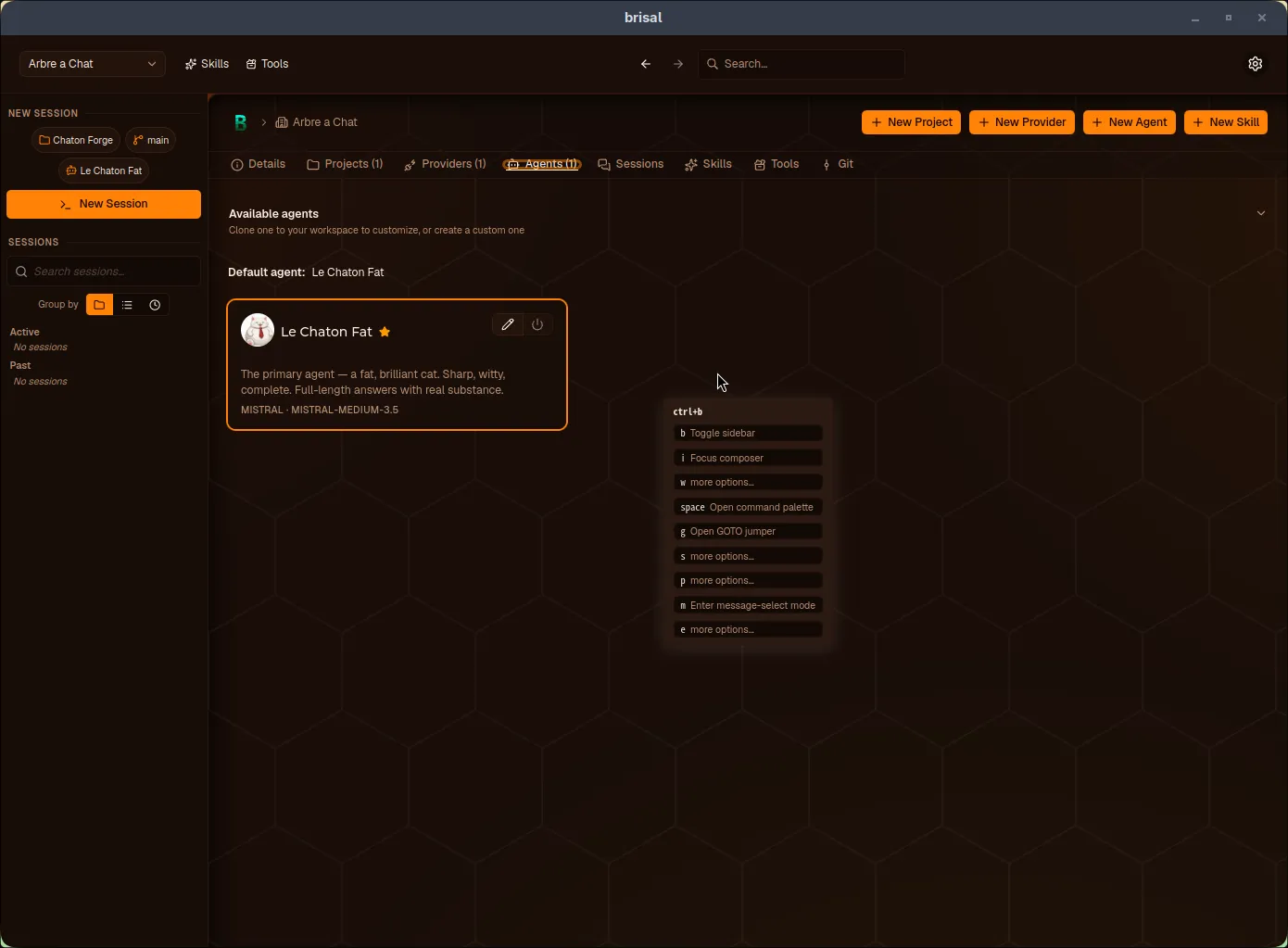
The which-key menu after pressing Ctrl+B: the next keys and what each does. w, s, and p continue into longer sequences (“more options…”).
Global
Works anywhere in the app.
| Shortcut | Action |
|---|---|
Ctrl+, | Open Settings. |
Ctrl+B B | Toggle the sidebar open or collapsed. |
Ctrl+B I | Focus the message composer. |
Ctrl+B W N | Create a new workspace. |
Ctrl+B W E | Edit the current workspace. |
Ctrl+B S N | Start a new session. |
Ctrl+B E H | Toggle the Explorer open or collapsed. |
Ctrl+B E D | Open the Explorer to its Diff module (enters Explorer mode). |
Ctrl+B E F | Open the Explorer to its Files module (enters Explorer mode). |
Command palette
A searchable list of every action the keymap knows, with each action’s current bindings shown alongside — the fastest way to run something you haven’t memorized, or to discover what a key does.
| Shortcut | Action |
|---|---|
Ctrl+P | Open the command palette. |
Ctrl+B Space | Open the command palette. |
Inside it: type to filter, ↑/↓ to move (the cursor wraps), Enter to run,
Esc to close.
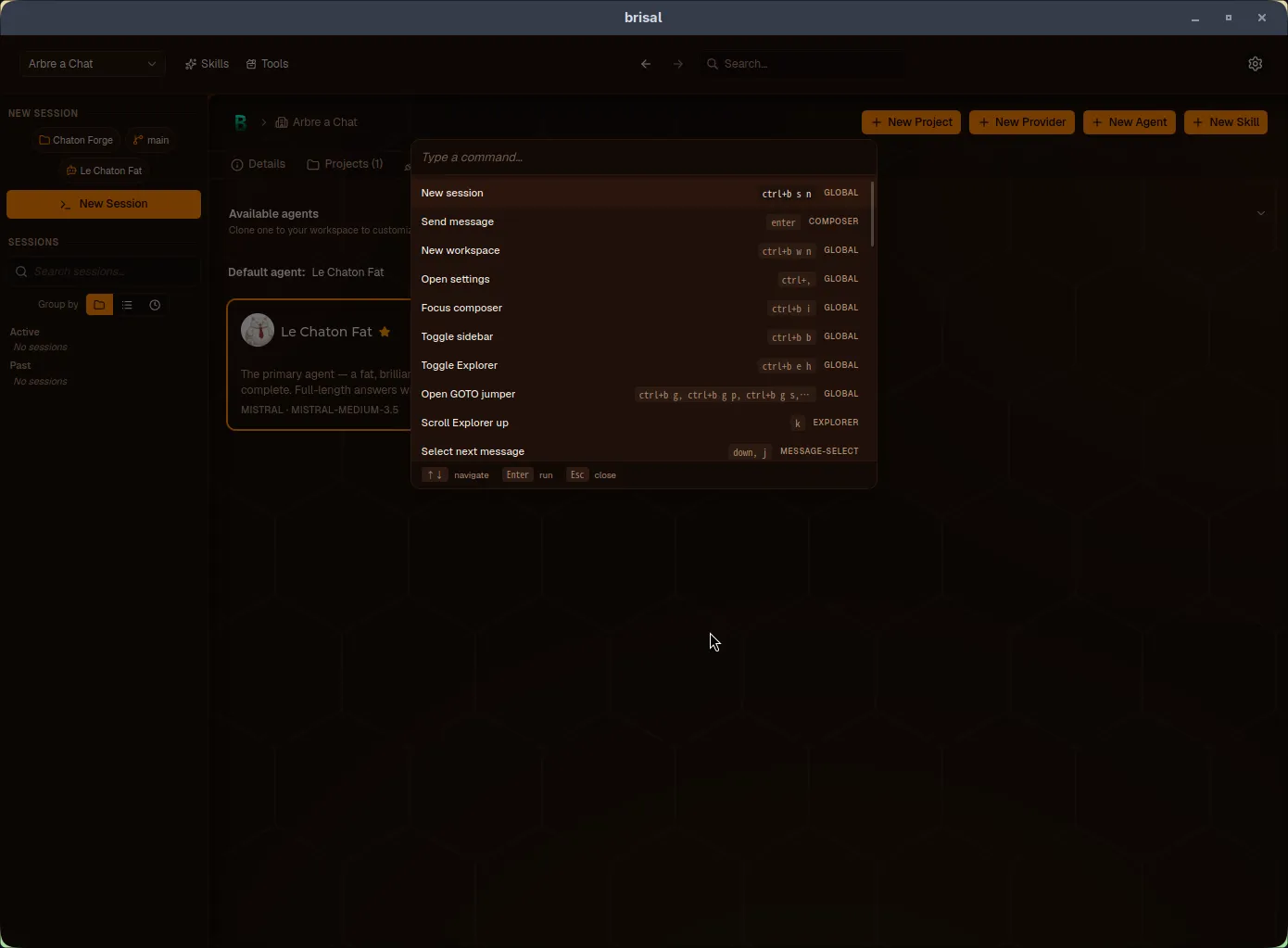
The command palette: every action, its bindings, and the context each belongs to — searchable and runnable without leaving the keyboard.
GOTO jumper
A jump-to jumper over your sessions, workspaces, and projects. Open it broad, or open it pre-scoped to one kind.
| Shortcut | Action |
|---|---|
Ctrl+K | Open GOTO (everything). |
Ctrl+B G | Open GOTO (everything). |
Ctrl+B S G | Open GOTO, scoped to sessions. |
Ctrl+B W G | Open GOTO, scoped to workspaces. |
Ctrl+B P G | Open GOTO, scoped to projects. |
Inside GOTO you can also switch scope by typing a keyword prefix — sessions:,
workspaces:, or projects: — instead of opening a pre-scoped variant.
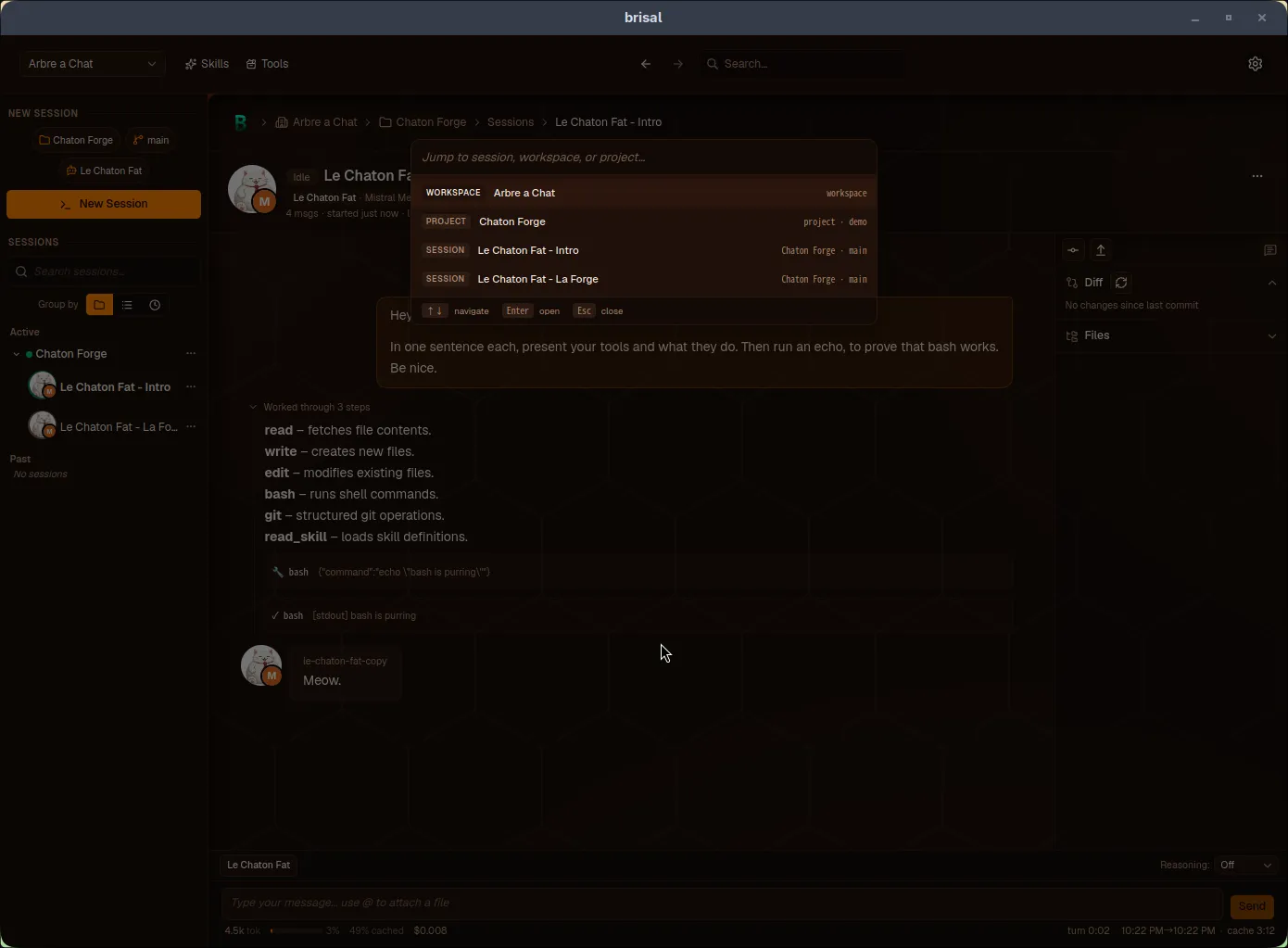
GOTO jumping across everything: workspaces, projects, and sessions in one list, each row showing where it lives.
Message-select mode
A modal, vim-style mode for moving over the messages in a session transcript — to copy one, or to start annotating it. Entering the mode blurs the composer; a cancel key exits.
| Shortcut | Action |
|---|---|
mod+M | Enter message-select mode. |
Ctrl+B M | Enter message-select mode. |
↑ / K | Select the previous message. |
↓ / J | Select the next message. |
Y / C | Copy the selected message. |
A / Enter | Annotate the selected message (enters annotate mode). |
Annotate mode
Line-level annotation of a message: walk the lines, open a comment on one, tag it, then send the assembled review to the agent.
| Shortcut | Action |
|---|---|
↑ / ↓ | Select the previous / next line. |
A / Enter | Open a comment on the selected line. |
Ctrl+Enter | Send the assembled annotation review. |
While writing a comment:
| Shortcut | Action |
|---|---|
Ctrl+Enter | Save the current comment. |
Ctrl+Q | Tag the comment Question. |
Ctrl+E | Tag the comment Edit. |
Ctrl+N | Tag the comment Note. |
Ctrl+R | Tag the comment Remove. |
Explorer mode
A modal mode for driving the
Explorer — the
session pane’s side panel — from the keyboard. Opening the Diff or Files module
(Ctrl+B E D / E F) enters it; a cancel key exits.
| Shortcut | Action |
|---|---|
Ctrl+B E D | Open the Explorer to the Diff module and enter this mode. |
Ctrl+B E F | Open the Explorer to the Files module and enter this mode. |
Ctrl+B E H | Toggle the Explorer open or collapsed (works anywhere). |
J | Scroll the Explorer down. |
K | Scroll the Explorer up. |
The arrow keys drive the Files module tree when it’s the focused module:
| Shortcut | Action |
|---|---|
↑ / ↓ | Move the file-tree selection up / down. |
→ | Expand the selected folder (or step into it). |
← | Collapse the selected folder (or step out to its parent). |
Enter | Open the selected file in the viewer. |
Message composer
When the cursor is in the message box of a session:
| Shortcut | Action |
|---|---|
Enter | Send the message. |
Shift+Enter | Insert a newline instead of sending. |
Esc / Ctrl+C / Ctrl+D | Interrupt the running turn. |
mod+S / Ctrl+S | Stash the current draft, or restore a stashed one. |
Ctrl+B K | Kill every subagent of the current session. Warns before discarding uncommitted work in isolated worktrees. |
While the composer’s inline picker is open (for example, choosing a file to reference):
| Shortcut | Action |
|---|---|
↑ / ↓ | Move through the suggestions. |
Enter | Accept the highlighted suggestion. |
Esc | Close the picker without choosing. |
Conventional keys
Standard keys Brisal honors consistently across dialogs, selectors, and lists, so you rarely need the mouse:
| Shortcut | Action |
|---|---|
Esc | Close the open dialog, overlay, or selector. |
Enter / Space | Activate the focused item (a card, a button, a list row). |
↑ / ↓ | Move through the entries of a list or picker. |
Tab / Shift+Tab | Move focus forward or backward through a dialog’s fields. |
Customizing bindings
Every binding above is a default you can change, per workspace, from Settings → Hotkeys — an editor that’s a live view over the running keymap.
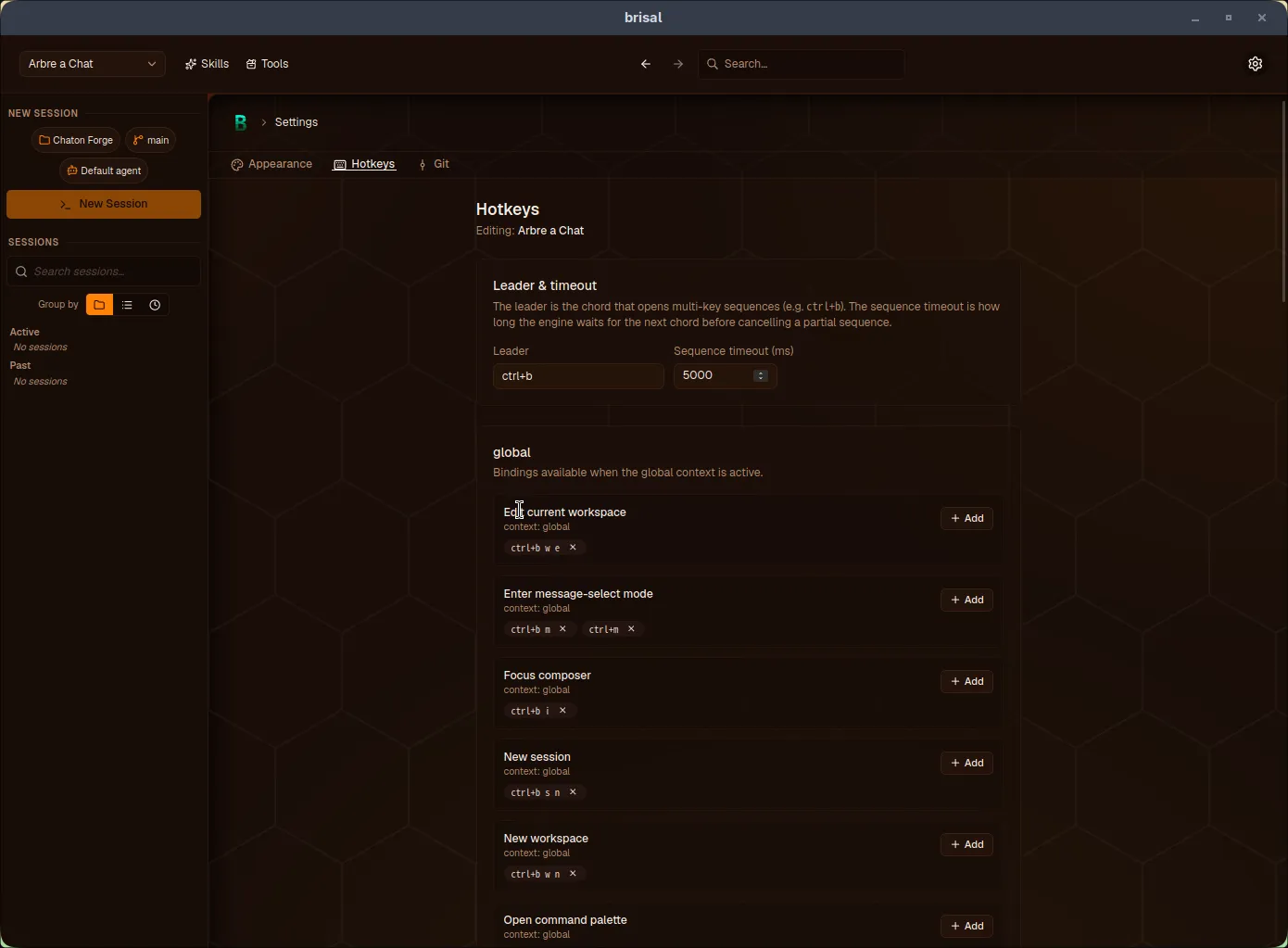
The Hotkeys tab: the leader and timeout up top, then every action grouped by context with its bindings as removable badges.
In it you can:
- Change the leader and the sequence timeout.
- Add a binding by capturing chords live, or remove one — including unbinding a shipped default.
- Copy another workspace’s bindings wholesale with Copy from workspace….
- See inline warnings for conflicts (a duplicate sequence, a sequence shadowed by a shorter prefix, or a default you’ve unbound).
Saving writes a sparse override to the workspace’s keybindings.toml, and the
live keymap rebuilds immediately. The editor is the supported path; for the file
format and fields, see Config files.
What to read next
- Settings — where the Hotkeys editor lives and how per-workspace overrides merge over the system defaults.
- Config files — the
keybindings.tomlschema, for hand-editing. - Sessions — where the composer keys, message-select, and annotate modes apply.