Providers
A provider is an LLM service Brisal talks to — Mistral, for example — configured with everything needed to reach it: the API endpoint and (for most services) an API key. Every model you run, and so every agent and session, ultimately runs against a provider. It’s the first thing you set up in a workspace before any real work happens.
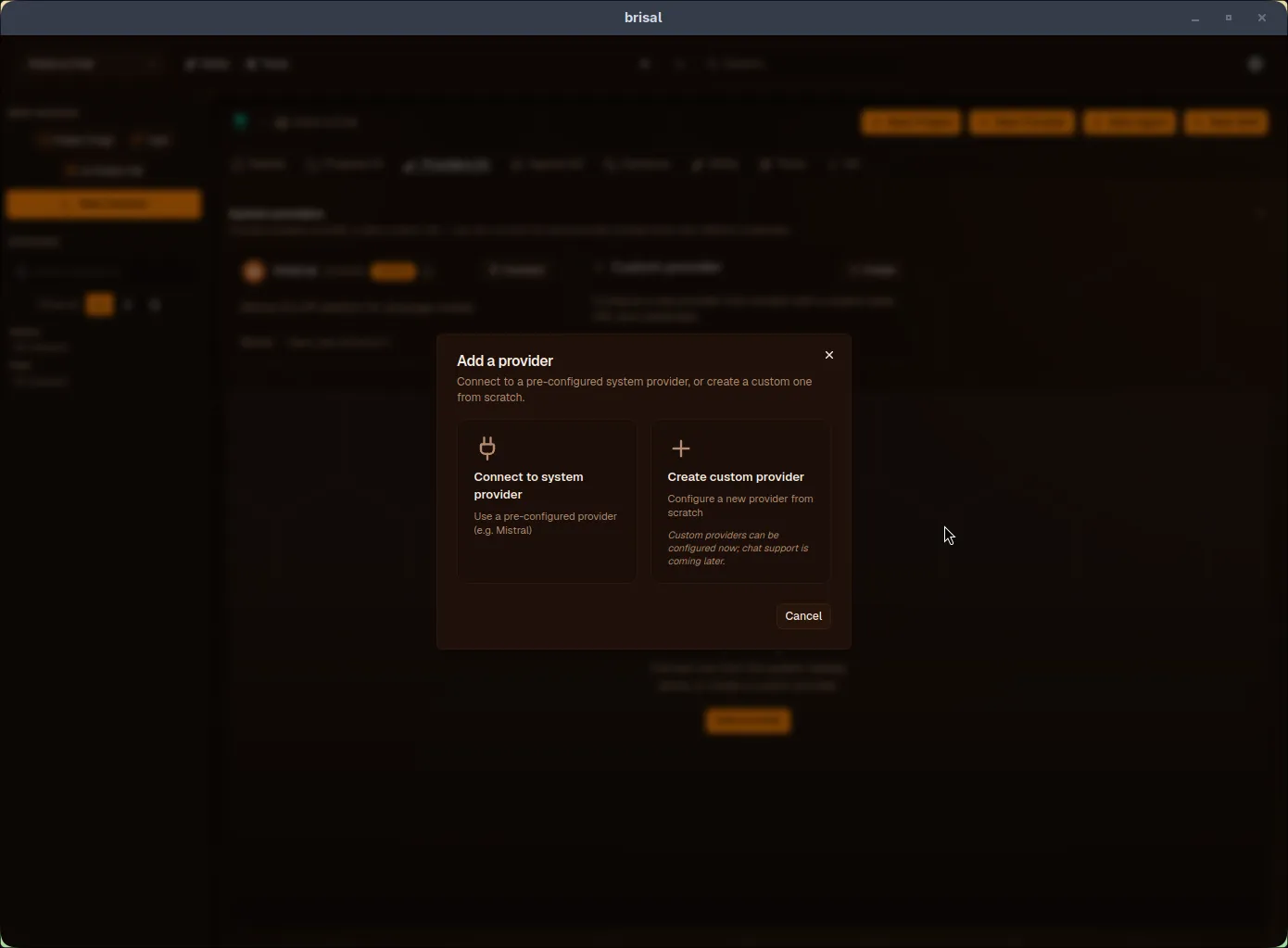
Providers come in two tiers. Brisal ships a read-only System catalog of built-in providers, and you connect one into your workspace to get an editable copy of your own.
Two tiers: system and workspace
System providers are built into the app. They are read-only and appear with a Template badge. You can’t edit or delete them, only enable or disable them. Today the built-in catalog contains Mistral. You browse it in the System providers panel at the top of a workspace’s Providers tab.
Workspace providers are yours. Each workspace holds its own providers, isolated from every other workspace. You can edit every field: endpoint, limits, timeout, and API key. Create one by connecting a system provider or by creating a custom provider.
This is the same clone-then-own mechanic used by models and agents: models are added, agents are cloned — same mechanic, different verb. The full scope model lives on Settings.
Connecting a provider
You connect a provider from a workspace’s Providers tab. At the top of that tab sits a collapsible System providers panel: it lists each built-in provider — Mistral today, with a Connect button — beside a Custom provider tile. Below the panel, the tab lists the providers you already own; on a fresh workspace that area reads No providers yet.
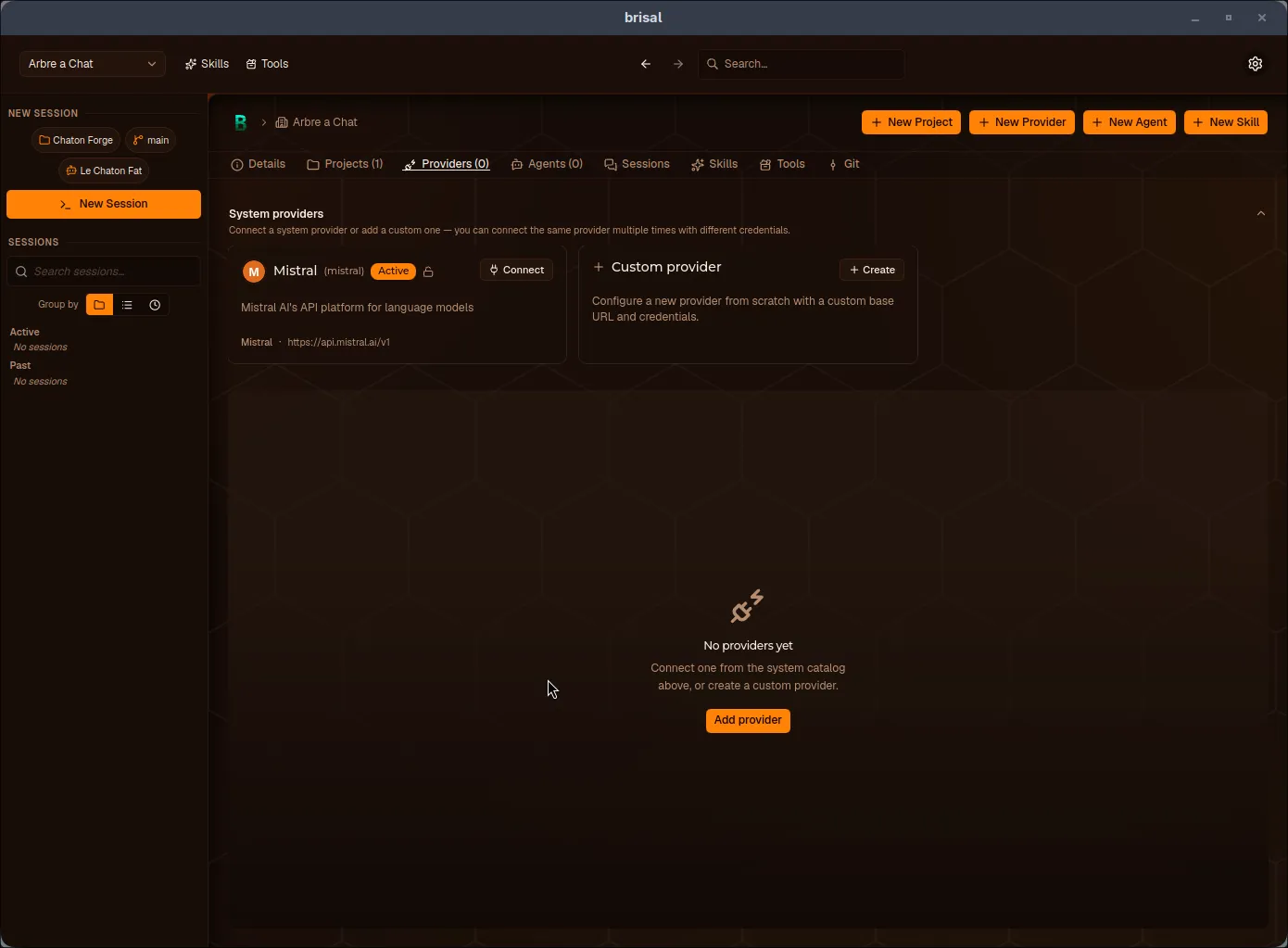
The Providers tab before you’ve connected anything: the System providers panel on top, an empty owned-providers area below.
To connect Mistral, press Connect on its card. (The New Provider button in the header, and the Add provider button in the empty state, open the same choice as a dialog — Connect to system provider or Create custom provider — if you’d rather start there.)
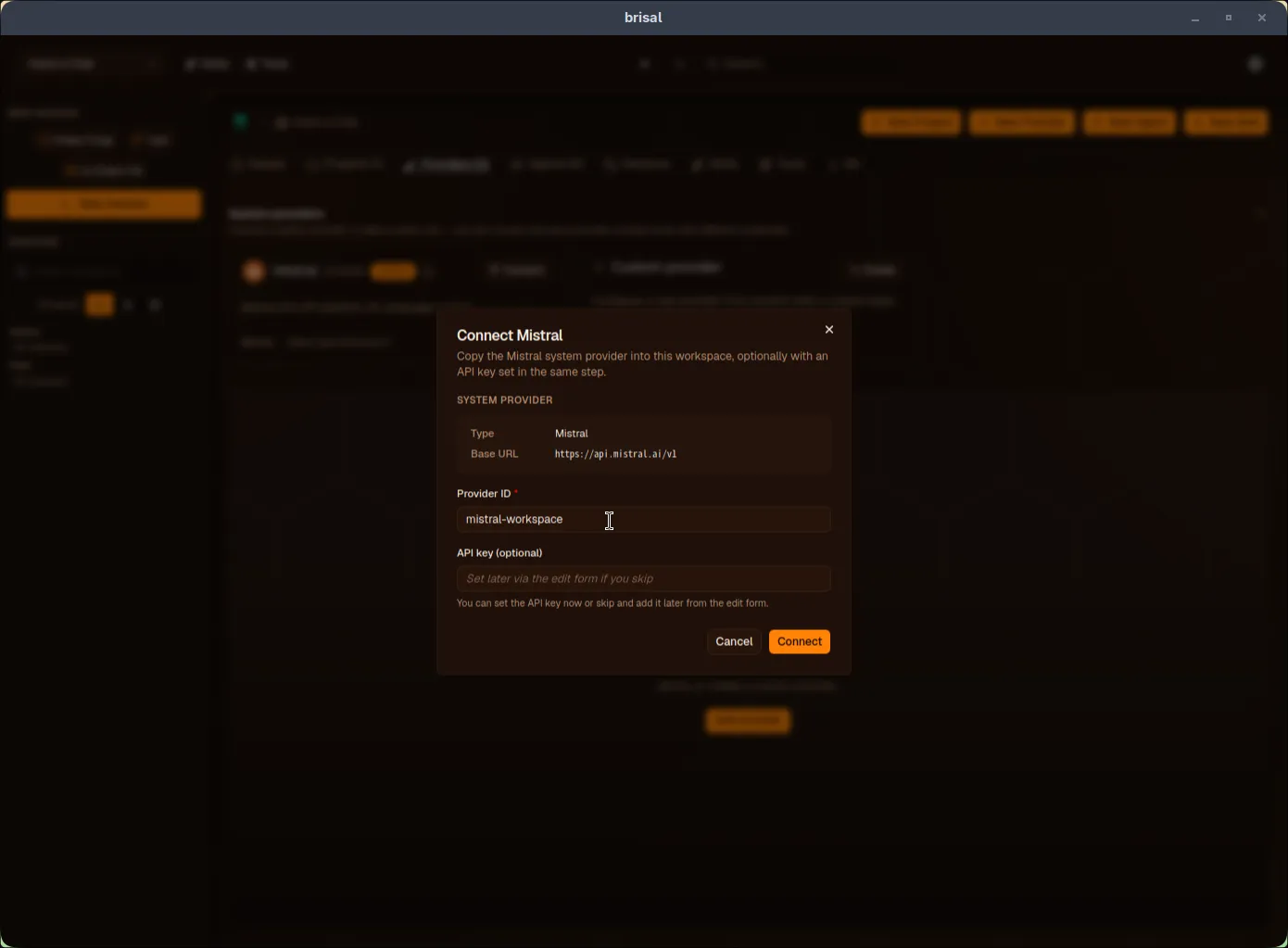
Connecting opens the Login to Mistral dialog. It shows the system provider you’re copying (type and endpoint, both read-only) and asks for two things:
- a Provider ID — a short name for this copy. The Mistral template suggests
mistral, thenmistral-2,mistral-3, and so on when those ids are taken. You can edit the suggestion; the final id must be unique across your providers. - an API key — optional here. Set it now, or skip it and add it later from the provider’s Edit form.
Press Login and the copy lands in your workspace as an ordinary, fully editable provider.
Clone-then-own: what you get
Connecting is a clone, not a link. Once the copy is in your workspace:
- You own every field. Edit the endpoint, timeouts, rate limits, and key freely — none of it affects the built-in original or any other workspace.
- The key is never copied. A freshly connected provider starts with no API key, even if you’d set one elsewhere. You supply the key for this copy.
- There’s no auto-update from the original. If a later Brisal release ships a changed built-in Mistral, your copy stays exactly as it is. To pick up changes, connect again or edit your copy by hand. Your copy remembers where it came from (“Copied from Mistral”) purely as a label.
Bringing your own service
The Add a provider dialog also offers create a custom one from scratch, for defining a provider Brisal doesn’t ship a built-in for.
Managing your providers
Once connected, a provider appears as a card in the owned-providers area of the Providers tab, carrying its id, status, and endpoint. Each card you own has three actions:
| Action | What it does |
|---|---|
| Models | Open the models defined against this provider. See Models. |
| Edit | Change the provider’s fields — endpoint, timeout, and the API key. |
| Disable / Enable | Set a provider aside without removing it. Disabled providers drop out of the model and agent pickers. |
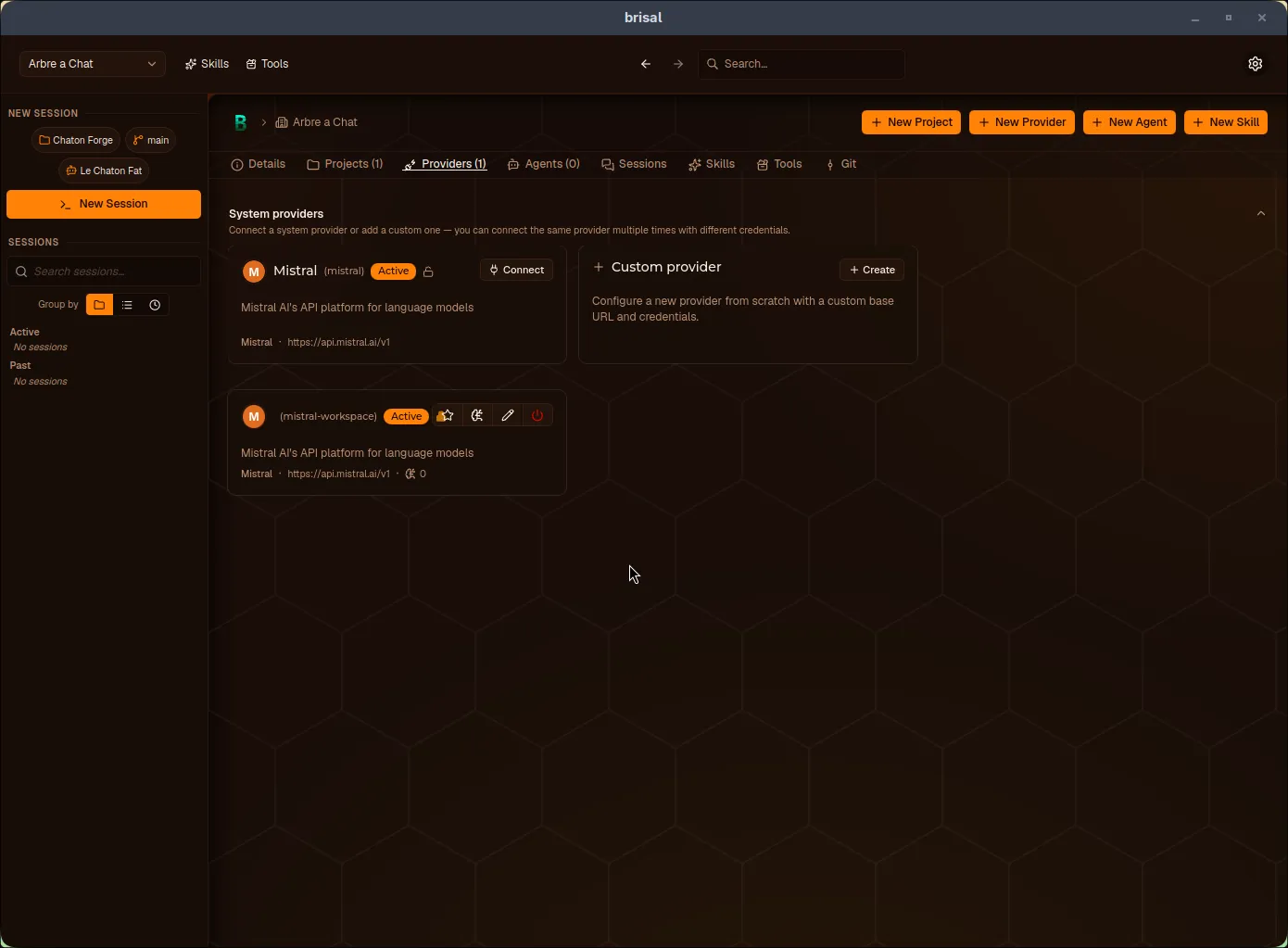
Built-in system providers only offer Connect and, from the System providers panel, Disable / Enable — there’s no Edit, because they’re read-only. Disabling a system provider hides it from the connect flow.
Where your API key lives
When you set an API key, Brisal hands it to your operating system’s secure credential store — the macOS Keychain, Windows Credential Manager, or the Linux Secret Service. The key is never written into Brisal’s own configuration files; those hold only an opaque pointer to the stored secret.
When a provider file is broken
Provider settings are stored as small files on disk. If one becomes corrupt — hand-edited into invalid form, say — Brisal skips just that provider and logs it, rather than failing to load the rest. A single bad file never takes down your whole provider list or empties the model picker.
What to read next
A provider is only the access point. What you actually pick when running an agent is a model, and models are defined against the provider that offers them:
- Models — the specific models a provider offers, and how you choose one.
- Agents — what runs a session, built on a model and its provider.
- Workspaces — the container that walls your providers and their keys off from every other context.