Sessions
A session is a single conversation with an agent, living inside a project. It’s where everything else comes together: you type a message, the agent — a model wrapped in a system prompt — streams a reply, runs tools, draws on skills, and the whole exchange is saved as a transcript you can close and reopen later.
If a project is where the work happens, a session is the work happening. A session always belongs to a project (and through it to a workspace), so the path to your first session is workspace → project → session — you can’t start one in the abstract.
- A project is the container.
- A session is one conversation inside it, start to finish.
- A turn is one round: your message, and everything the agent does in response.
Starting a session
Brisal is built so you can just start typing — no “create, name, configure” ceremony before you can talk.
From a project’s Sessions tab, press Start Session to land on a draft screen headed “New Session — not saved until you send the first message.” Pick an agent and a worktree if you want (both default sensibly — the workspace’s default agent, the project’s current worktree), then send. The session is created on that first send, not before: abandon the draft and nothing is written, so opening one and walking away costs nothing.
Once a human-started session exists, it shows up in two places: the project’s Sessions tab (the regular, filterable list for that project) and the sidebar, a workspace-wide jumper across every project — both covered under Managing your sessions.
The chat loop: a turn
The heart of a session is the turn — one exchange. You send a message; the agent responds, and its response can be more than plain text. A single turn may contain the agent thinking, calling tools (reading files, running commands), reading their results, and finally writing its answer. Brisal streams all of this live as it happens.
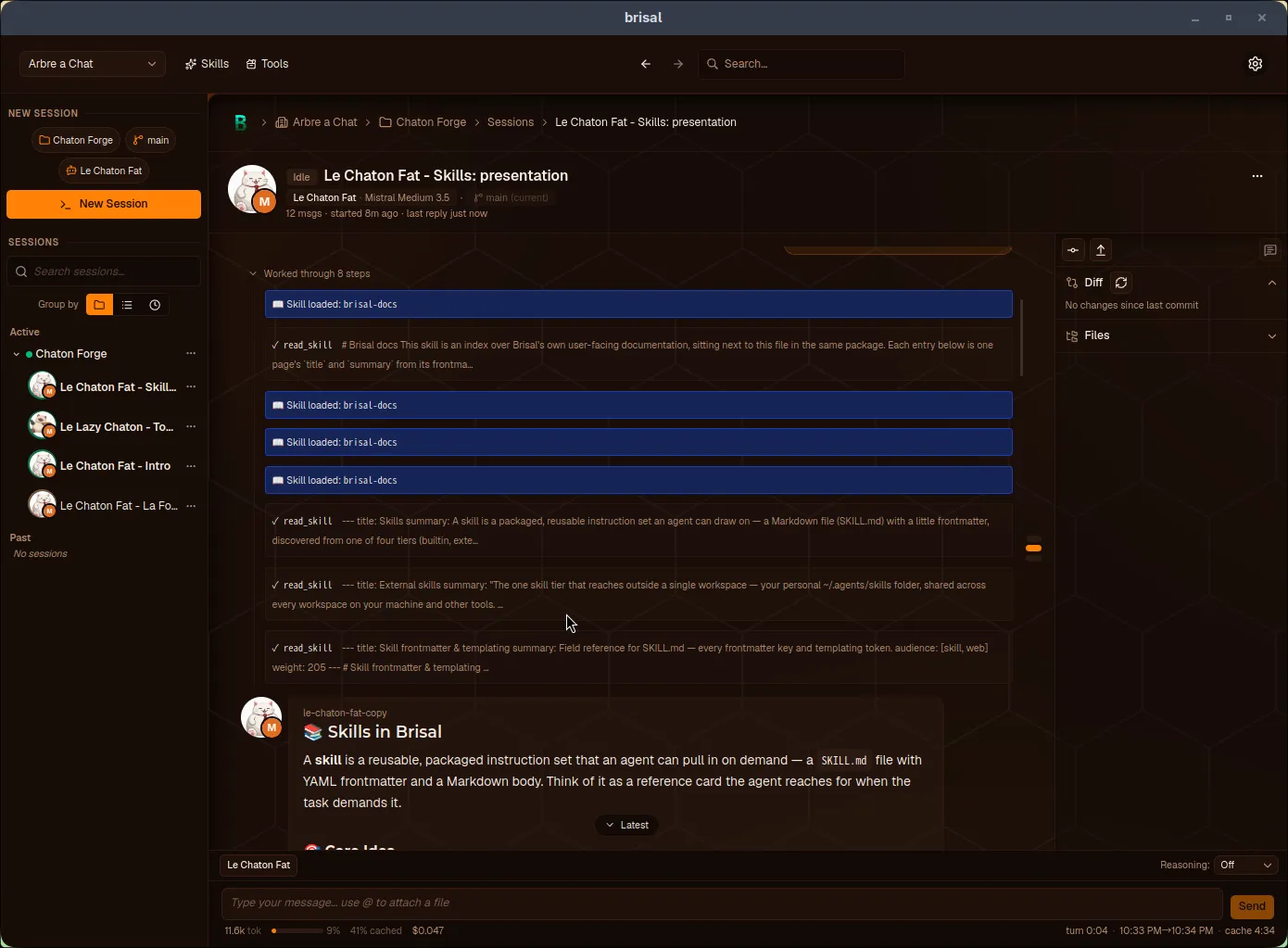
A turn: your message, the agent’s reply (with a collapsible Reasoning trace), and — below it — two shell runs you kicked off yourself. The composer’s Reasoning selector and the token meter (context fill, cost, and the prompt-cache countdown) sit along the bottom.
A few things worth knowing about turns:
- Reasoning level. A Reasoning selector next to the composer — Off, Low, Medium, High — sets how hard the agent thinks before answering. Unlike the agent’s own default thinking setting, it’s a per-message dial you can change turn to turn.
- Stop. While a turn streams, the send button becomes Stop; pressing it interrupts the turn cleanly and the transcript records that it was interrupted.
- Collapsible steps. You see the agent’s steps live (“Working…”); once the turn ends they fold into a tidy “Worked through N steps” you can expand.
- Attach a file with
@. Typing@opens a fuzzy file picker over the worktree; pick one and its path rides along with your message.
Jumping between turns: the turn rail
A long conversation gets a turn rail — a thin vertical strip of markers down the right edge of the transcript, one pill per turn (each turn that has a message of yours). It’s how you move around a session without scrolling.
- Hover a pill to preview that turn’s message; click it to jump the transcript straight to that turn.
- The pill for the turn you’re currently reading is highlighted, and the highlight follows along as you scroll.
- While a turn is streaming, a live pill pulses at the bottom of the rail.
- The rail appears only once a session has two or more turns; below that there’s nothing to navigate, so it stays hidden (its space is reserved, so the transcript doesn’t shift when it appears).
Working in a session
Beyond plain chat, a session gives you two extra ways to drive the agent.
Running a shell command: ! and !!
You can run a shell command straight from the composer, without asking the agent to do it. Start a line with:
!command— a public run. It executes in the session’s worktree, its output shows in the transcript, and it becomes part of the conversation the agent sees next turn. The submit button reads Run.!!command— a private run. It executes and is recorded the same way, but it is not sent to the agent — it wears a “Not sent to AI” badge and the button reads Run (private).
The composer changes appearance in each mode so you always know which you’re
about to do, and a running command can be Stopped mid-flight. In the
turn above, $ ls is public and $ echo … is private.
Annotating a message
You can also review an agent message line by line with an annotation: tag lines as Question, Edit, Note, or Remove, then send the assembled review as your next turn. Drafts auto-save and can be reopened from the Explorer toolbar.
Switching agent or model mid-conversation
You aren’t locked into the agent you started with. The composer’s agent picker lets you switch to a different agent partway through — and because an agent carries its own model, switching agent switches the model too. You can only switch between turns, though; the picker is disabled while a reply streams.
When you switch, Brisal updates the session’s current agent and model for every following turn, drops a “Switched to agent: …” marker into the transcript, and remembers every agent that has participated — labelling each past reply with the agent that actually produced it.
Forking a session
Forking branches a conversation into a new, independent session. From the agent picker (or a session’s row in the list or sidebar) choose Fork — you can fork onto a different agent in one step. The fork records which session it came from but starts with an empty transcript (no messages are copied) on the same project and worktree; the original is untouched, and the two are fully independent afterward. It’s the move for “try this a different way” without losing where you are.
A session can also become the parent of subagent sessions through delegation — the agent itself spawns children in parallel during a turn, rather than you forking by hand. Subagents inherit the parent’s project and worktree (or take an isolated one) and run as ordinary sessions you can open from the Subagents panel.
A workflow also starts ordinary sessions for its agent-backed attempts. Those sessions are hidden from the regular Sessions list by default and opened from the workflow, where their Node, Run, Attempt, and worktree provenance stays visible.
Worktrees: isolating a session’s changes
A worktree is how a session keeps its file changes separate from the rest of a project — a checkout of the project’s code on its own branch, so work in one session doesn’t collide with another. Every session is bound to a worktree the moment it’s created, and Brisal records the exact commit it started from.
You choose the worktree on the draft screen (or create a new one right there). Once a session has any messages the picker locks, its tooltip reading “To use another worktree, you must start a new chat.”
Once a session is running, its Explorer reads this worktree without leaving the chat: the Diff module shows what’s changed since its last commit, and the Files module browses its whole tree.
Orphaned sessions. If you later delete a worktree, Brisal doesn’t discard the sessions that ran in it — it orphans them: archived, stamped with when they were orphaned, and moved aside, but with their history and the worktree name they belonged to preserved. An orphaned session is read-only history you can still open; it just no longer has a live worktree behind it.
Worktrees are a topic in their own right — branch management, merging work back, diffs. This page covers only what a session needs from them; see Worktrees for the full picture.
What a session remembers
A session is durable: close the app, reopen it, and your sessions are all still there, because the parts that matter are written to disk as you go —
- the transcript (every message, tool call, result, and both public and
private
!/!!runs); - the session’s current agent and model, and every agent that took part;
- its worktree and starting commit, title, tags, and running statistics.
Liveness: “open” is not “running”
Keep two ideas apart. Whether a session is open is a persisted flag that survives restarts and means “not yet ended or archived” — a session you never explicitly end stays open. Whether it’s live is what’s happening right now, computed on the fly and never stored, because it only makes sense while the app is running. That’s why a session can be “open” after a restart yet show as Idle: nothing is running, it’s just waiting for your next message. Brisal shows the live state as a small indicator:
- Running — a turn is executing.
- Blocked — the turn is paused, waiting on your input (see When a hook asks).
- Idle — nothing is running; send a message to start a turn.
The sidebar also shows an unread hint: a session that finished work while you were elsewhere is flagged so you know to look — handy when you leave a long turn running and move on.
The token meter
Below the composer, a token meter shows how full the model’s context window is (a bar that shifts color as you near the limit) and, when your model has pricing set, an approximate cost for the session. Once the provider has returned usage for the session, the meter also shows a cache-hit rate (“N% cached”) — the share of prompt tokens served from the provider’s prompt cache (it reads 0% cached until a cache hit lands). Alongside the meter, a timer shows how long the current turn is taking and counts down the provider’s prompt cache.
When the provider returns usage data, Brisal uses the provider’s latest
total_tokens value as the current context size. Mistral reports this as the
session/request total, not as a delta to add to previous turns. If the provider
doesn’t return usage data, Brisal falls back to a transcript estimate (counting
characters, with CJK characters counted one-to-one and up to 4 non-CJK
characters grouped as one token) and marks the number as estimated.
Treat cost as a guide, not an invoice. Brisal calculates it from each model’s per-million-token prompt and completion pricing — summed across every model a session has used, so a mid-session switch is priced correctly. When a model has a cached-input rate set, cached prompt tokens are billed at that lower rate, so the meter already reflects the discount; Brisal’s built-in Mistral Medium 3.5 ships with one. If a model has no cached rate, cached tokens are counted at the full input rate — the estimate never undershoots the real bill, but it also won’t show a discount until you set the rate (see Models). If some of a session’s usage came from a model with no pricing at all, the figure is marked with an asterisk and covers only the models it could price.
Managing your sessions
Two surfaces list your sessions:
- The project’s Sessions tab — a filterable table of that project’s sessions, with search, liveness and status filters, columns for worktree, agent, message count, and last activity, and bulk archive/delete/fork on selected rows.
- The sidebar — a workspace-wide jumper across every project, split into Active and Past by recent activity, with a liveness ring on each and unread sessions in bold.
Every session carries the same lifecycle actions, from its header, its list row, or the sidebar:
| Action | What it does |
|---|---|
| End | Closes an open session. It stops being “open” but stays fully readable. |
| Rename | Retitle it (from the session header — click the title). |
| Fork | Branch it into a new independent session (optionally on another agent). |
| Archive / Restore | Set a session aside as read-only, or bring it back. |
| Delete | Remove it for good. Allowed only once the session is no longer open — so End or Archive it first. |
A session also carries a status — Active, Inactive, or Archived — shown as a badge. Status is the persisted lifecycle (ended? archived?), distinct from the live Running / Blocked / Idle state above.
If you open a session in a project you haven’t trusted yet, a trust banner appears right in the session view and you can resolve it without leaving the chat — because a project’s own skills and hooks stay inert until you trust it. See Trust.
When a hook asks
Brisal is permissive by default: it doesn’t stop and ask before the agent runs a command. But if a hook is set up to gate an action, it can pause a turn for your permission — the session goes Blocked and a dialog (“Hook requesting permission”) offers Allow, Block, or Allow for session; answering resumes the turn. This is the exception, not the rule: out of the box no hook gates anything, so you won’t see it unless one is configured to. Hooks are a cross-cutting topic documented separately; this only names the experience you might meet inside a session.
What to read next
A session is where every other concept meets real work, so its neighbours are the pieces it draws on:
- Agents — the assistant a session talks to, and the one you can switch to mid-conversation.
- Worktrees — the isolated checkout a session runs in, and how to branch, diff, and merge it.
- Projects — the container a session lives in, and the trust gate that guards a project’s own skills and hooks.
- Delegation — when an agent spawns subagent sessions in parallel and reads back their results.
- Annotations — line-by-line review of an agent message, sent as your next turn.
- Explorer — the session’s side panel: diff, files, and session-level actions like commit and push.