Appearance & Theming
Appearance is how Brisal looks, configured via three independent axes:
- Mode — light, dark, or follow the operating system.
- Font size — one number scaling the whole UI.
- Palette — the color identity (built-ins or custom).
All three are set in Settings → Appearance and are per-workspace. Each workspace carries its own appearance, overriding a system default. Switching workspaces re-themes the app.
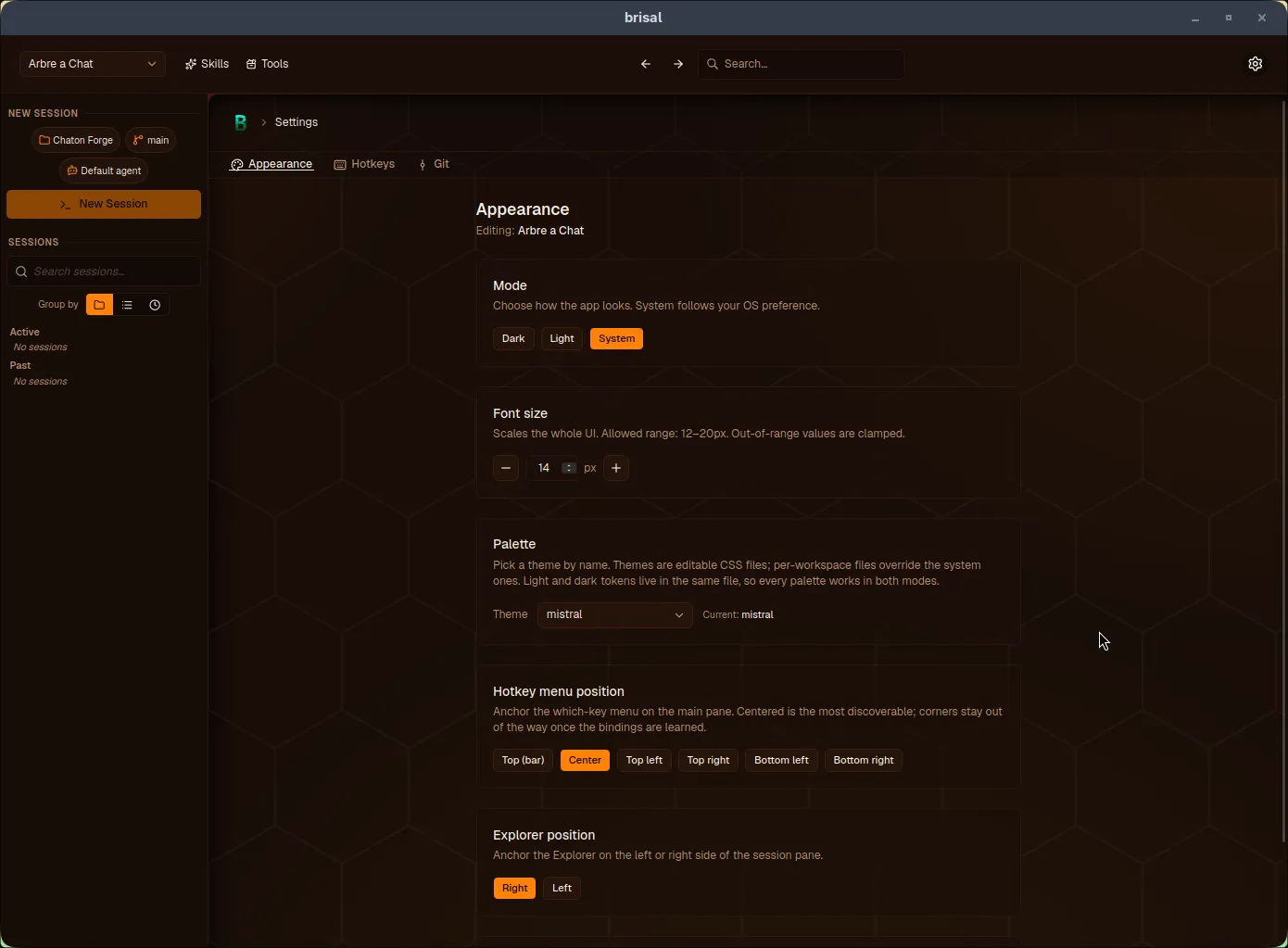
The Appearance tab: mode, font size, palette, and hotkey menu position, all scoped to the workspace.
The three axes
Mode
Chooses light vs. dark:
- Dark / Light — pin the app to that mode.
- System — follows your OS preference (default).
Every palette defines light and dark variants, so switching mode re-renders the same palette in the other variant.
Font size
A single value scaling the entire UI, defaulting to 14px with a 12–20px range. Out-of-range values are clamped.
Palette
The color identity: pick from three built-ins (mistral, brise, tramontane) or any custom palette added to the workspace.
Non-theming controls
Hotkey menu position
Where the which-key menu appears: Center (default), Top (full-width strip), or four corners. Per-workspace; inherits a system default.
Explorer position
Where the Explorer side panel docks: Right (default) or Left. Per-workspace; inherits a system default.
This is the only Explorer setting at workspace level: where it sits is workspace chrome, while whether it’s open is per-session.
Code theme
Syntax coloring for the Explorer file viewer, separate from palette. Choose from One Dark Pro (default), GitHub, Vitesse, Catppuccin, or Night Owl. Each has light and dark variants following the app mode automatically. Background stays transparent, tracking your palette. Per-workspace; inherits a system default.
Subagents panel position
Where the Subagents panel mounts per workspace:
- Explorer (default) — the panel sits inside the Explorer’s module card, alongside Diff and Files.
- Chat — the Explorer card hides and the panel renders full-width above the transcript, keeping the delegation tree in view while you read.
Per-workspace; inherits a system default. Both positions stay live as the tree grows, shrink, or gets killed.
Max concurrent subagents
The fan-out cap on how many subagents a session can run at once per turn. Default 3, clamped to the 1–20 range — out-of-range values get clamped. Per-workspace; inherits a system default. See Delegation → Parallel cap for how the cap queues excess delegations.
Palettes are data
A palette is a file. Brisal reads palettes from a workspace’s themes/ folder — drop a valid CSS file in and it appears in the picker by filename. Delete it and it’s gone. The picker reflects the directory contents.
A palette is a token-only CSS file with two blocks:
/* themes/midnight.css — a palette named "midnight" */
:root {
  --background: #f7f8fb;
  --foreground: #10131a;
  --primary: #3b5bdb;
  --primary-foreground: #ffffff;
  --border: #dfe3ec;
  /* …the rest of the tokens… */
}

.dark {
  --background: #0b0d12;
  --foreground: #e8ebf2;
  --primary: #748ffc;
  --primary-foreground: #0b0d12;
  --border: #232838;
  /* …same tokens, tuned for dark… */
}:root— light variant.dark— dark variant
Filename (minus .css) becomes the palette name. Mode and palette are orthogonal: one file answers “what color is this?” for both modes.
Adding a palette
No “new theme” button — author in place by adding a file:
- Create a file in the workspace’s
themes/folder (e.g.,midnight.css). Names: lowercase letters, digits, hyphens, with.cssextension. - Fill in tokens. Copy the skeleton above and adjust values. Full token list in Config files.
- Pick it. It appears in the picker. Selecting it re-themes immediately.
Custom palettes are workspace-scoped and listed alongside built-ins.
Fallbacks
Appearance is forgiving:
- Unknown/deleted palette → falls back to
mistralwith a toast. - Out-of-range font size → clamped (12–20px) with a toast.
- Malformed theme file → skipped; default used.
You never face an unstyled or broken app.
Copying appearance between workspaces
Copy from workspace… copies all appearance settings in one step. On the Appearance screen, pick a source workspace and click Copy. Brisal copies mode, font size, palette, hotkey menu position, Explorer position, code theme, subagents panel position, max concurrent subagents, and the source’s theme files, ensuring copied palette names resolve. Only appears when another workspace exists. (Copying keybindings is separate on the Hotkeys tab.)
Built-in palettes
Brisal ships three built-ins, named for French winds (“Brisal” means breeze):
mistral— warm amber, the default. Named for the wind and MistralAI’s brand. (Not the Mistral provider.)brise— original cyan look; the name’s root.tramontane— cool storm-slate, a cold north wind.
All are always available in both light and dark variants. Additional palettes are user-authored.
What to read next
- Settings — reaching settings and the global-vs-workspace scope model.
- Workspaces — the unit appearance is scoped to.
- Delegation — what the subagents panel position and parallel cap actually do.
- Config files —
config.tomlfields and complete palette token reference.